Get the latest insights, product updates, and news from Permission — shaping the future of user-owned data and AI innovation.
Back to school is hard enough. Then technology arrives. Chromebooks, iPads, accounts your child needs, apps you have to install, forms you have to sign, and nobody in the process is going to slow down and explain any of it to you. This guide does.
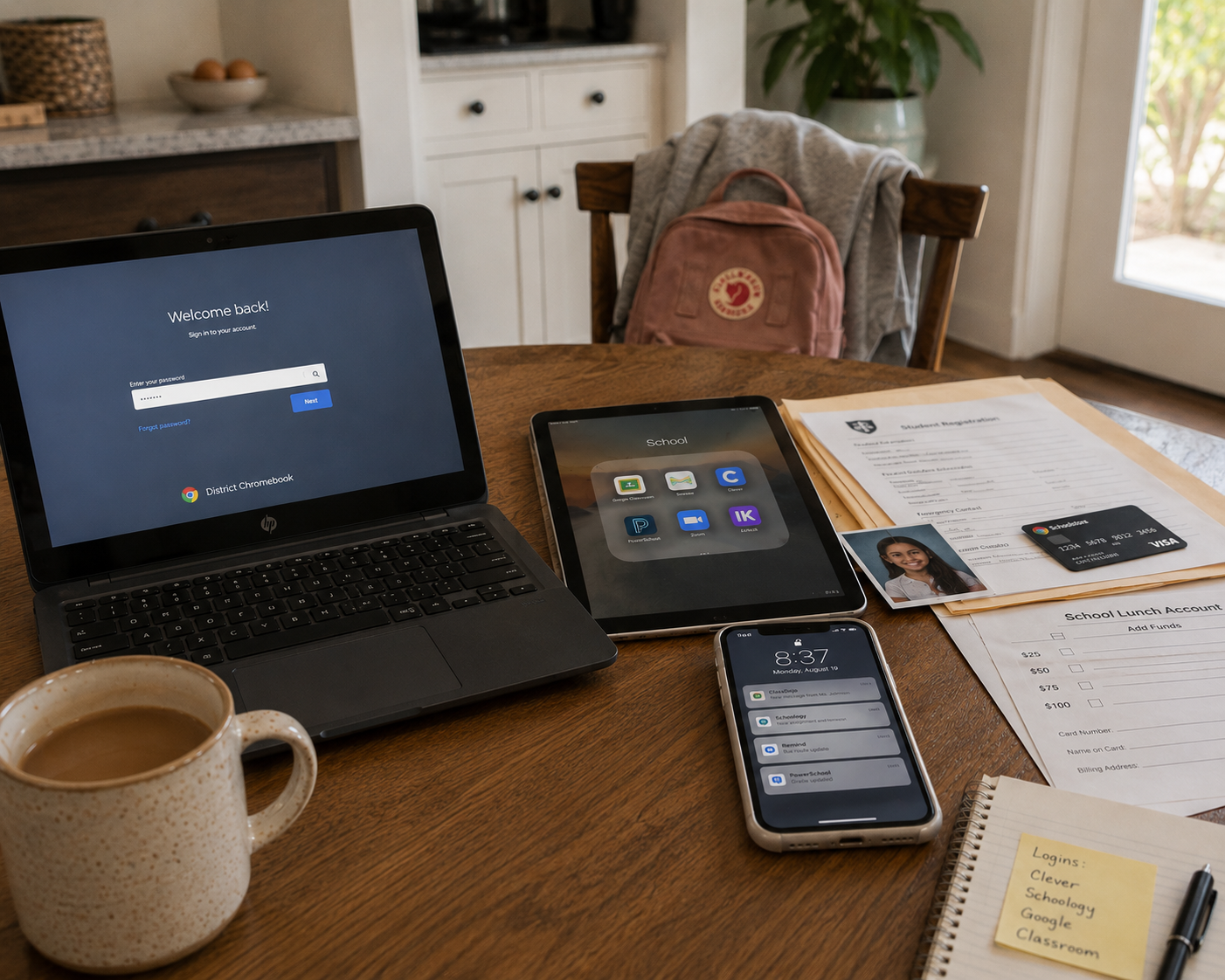
1. Introduction: how to use this guide
This guide is for you if your child is starting kindergarten, switching districts, or you just want to check in once the year is underway. It covers every grade and every layer of technology involved.
You don't need to read all of it. If your child is entering kindergarten, read Sections 2, 3, 4, and the K–2 block of the age-band section, and stop. If your child is entering middle school, Sections 5, 6, 7, and 10 matter most. Short on time? Skip to the quick-reference checklist at the end. It's designed for exactly that.
One framing before you start. Almost nothing in this guide is a setting you can change. The school chooses this technology, not you. What you can control is smaller and more important: which of your accounts anchor the systems, what you agree to in the registration packet, the rules in your own home, and the questions you ask. This guide exists so you know what's arriving, what you signed, and what to do about it.
2. What actually arrives when school starts
School doesn't just enroll your child. It enrolls your whole family into a technology stack, and explaining that stack to you is nobody's job. That gap is the problem this guide is designed to solve.
The average school district accesses roughly 3,000 different educational technology tools in a year, and the average student personally uses about 48 of them over a school year. Your child will have accounts created in their name. You will be asked to install apps on your own phone. Your payment card will go into a school system. Your child's photo will flow into several others. Almost none of this will be presented as a choice, and no one will brief you on it as a whole.
And most of it is genuinely good. It's worth saying plainly, because most writing about school technology is alarmed: a kindergartner logging into a reading app with a QR-code badge is a small marvel. A parent seeing tonight's homework without interrogating a tired ten-year-old is a real improvement on every previous generation of schooling. Teachers reach non-English-speaking families in their own language now. Buses announce themselves. These tools exist because they work.
The problem is not the technology. The problem is that every one of these systems builds a direct relationship with your child, and nobody is responsible for making sure you understand the whole picture. That gap, not the technology, is the problem, and closing it is the job this guide does.
The signature rule of this guide, worth carrying for the next thirteen years: be able to name every account that carries your child's name.
3. The accounts created in your child's name
The school Google account
For most American schoolchildren, the first durable digital identity of their life is created not by their family but by their school district. The large majority of districts run on Google Workspace for Education: the district creates a Google account in your child's name — real name, school email address — often in kindergarten. A minority of districts use Microsoft's equivalent (Microsoft 365 Education, with Teams); the pattern is the same.
Three facts about this account matter more than all the others:
First, the district owns it, not your child and not you. The district's administrators decide which Google services are switched on, can review its contents, and control it entirely. Google's own framework has schools notify parents and obtain consent, and requires the district to disclose which additional services (like YouTube) it has enabled against student accounts. If you never saw that notice, it was probably a page in the registration packet.
Second, your parental controls do not govern it. If you use Google Family Link to supervise your child's personal account, understand the boundary precisely. Added as a secondary account inside your child's supervised session, your Family Link rules still govern that session — but the district decides what the school account itself can access, and where the two conflict, the district's policies win. Added as its own separate user on the device, the school account sits outside Family Link entirely, with none of your rules applying. Either way, what the school account can reach is the district's decision, not yours.
Third, the account dies when your child leaves. At graduation, withdrawal, or a move between districts, the account — and everything in its Drive and email — is typically deleted on the district's schedule. Thirteen years of work can vanish. The high-school block of the age-band section flags the export step; it takes an evening, and almost no family does it.
Decision question
Do you know which services the district has enabled on your child's school account — and have you read the notice that listed them?
The badge, the portal, and the app carousel
Your child will not log into 48 apps with 48 passwords. Districts use a single-sign-on portal — Clever and ClassLink are the two big ones — that presents every connected app as an icon on one page. In the early grades, children authenticate with a Clever Badge: a printed QR code they hold up to the webcam. Children can log in before they can read. Treat the badge like a password — anyone holding it can sign in as your child, which is why schools void and reprint them each year.
The portal is also your single best window into the stack: the app carousel is the district's technology inventory, sitting in plain sight. Large districts commonly connect dozens of apps — reading programs (Lexia, Raz-Kids, Epic!), math practice (IXL, Zearn, Prodigy, i-Ready), assessment platforms, and more.
Here is the part parents find hardest to believe: none of those apps asked your permission. Federal privacy law (FERPA) lets schools share student data with vendors under a "school official" exception, and children's privacy law (COPPA) lets schools consent on parents' behalf for educational use. The consent moment you never noticed was the technology acceptable-use form in the registration packet. Your recourse is not per-app consent; it is awareness — most districts will provide their approved-app list and data agreements on request, and a growing number publish them.
The classroom platform
From about third grade up, schoolwork itself lives in a homework-and-assignments platform (the school will call it a learning management system, or LMS). Three cover roughly three-quarters of American schools: Google Classroom (the largest, common in elementary and smaller districts), Canvas (common in large districts and high schools), and Schoology (owned by PowerSchool, often bundled with its records system). Elementary parents mostly see this layer indirectly. From middle school on, you can usually get your own login that shows your child's assignments and due dates without letting you change anything — the school will call it a parent account or observer account; ask the school how to set one up. Google Classroom's version is the guardian email summary — a digest of your child's missing and upcoming work (you choose daily or weekly; grades are not included) that starts when a teacher or administrator sends you an email invitation and you accept. It's off by default, one of the most useful and least-known features in school technology, and you generally have to ask for it.
Critical warning
A school account on a home computer brings the school with it.
When your child signs into their school Google account in a browser on the family laptop, the district's filtering and monitoring typically apply to that session. The reverse is also true and more dangerous to your confidence: the school's protections generally do not cover your child's personal accounts, even on the school's own device. Section 6 explains this boundary in full; it is the single most misunderstood fact in school technology.
4. The apps that arrive on your phone
The systems above belong to your child. This layer belongs to you — it is the set of apps the school asks you to install, and for most parents it is three to five apps per child, chosen by other people, and overlapping.
A typical arrangement: the district sends official communication through a mass-notification platform — ParentSquare is the dominant district-wide system (it absorbed Remind's school business), and SchoolMessenger is the legacy robocall-and-email layer that often runs alongside it. Your child's teacher runs a classroom app — ClassDojo dominates K–8 classrooms (behavior points, photos, messaging), and Seesaw is the standard portfolio app in K–5, usually the first install request a kindergarten parent receives. The PTA and room parents organize on something else again (Konstella, ClassTag, or just a group text). Districts with many non-English-speaking families often add TalkingPoints, which translates teacher–parent messages automatically.
Two failure modes account for nearly all the pain in this layer, and both are yours to prevent:
The first is the missed channel — critical information going to the one app you never set up. The fix is a quick audit: ask the front office and the teacher, directly, "which systems will send me things this year?" and set up every one.
The second is muting your way into silence. These apps overnotify, you mute them in October, and in February the early-dismissal notice lands in a muted channel. The fix is configuring notification tiers rather than muting apps: urgent categories loud, social categories quiet.
Our view
Anchor every one of these accounts to a durable personal email address that both parents can access — never a work email. Families change jobs more often than children change school districts, and re-anchoring five school apps mid-year is miserable. This is the same identity-before-device principle that governs everything else in family technology: decide which identity anchors the system before the system arrives.
One more thing worth knowing: some classroom apps sell subscriptions directly to parents (ClassDojo's paid family tier is the common example). Core classroom communication is free on these apps; if something the class requires seems to be behind a paywall, ask the teacher — it almost never should be.
Decision questions
Which email address anchors your school accounts — and can both parents access it? Which notification categories have you set to loud, and which to quiet?
5. The parent portal and your child's records
Behind everything sits the student information system — the database of record for enrollment, attendance, grades, schedules, discipline, and health information. PowerSchool is the biggest national vendor; Infinite Campus and Skyward are the other names you're most likely to meet. You interact with it through a parent portal with its own login.
The portal's importance grows with your child. In elementary school it holds attendance and report cards and you may rarely open it. In middle school, when letter grades and period-by-period attendance switch on, it becomes the surface many parents check daily. In high school it carries the transcript and GPA.
Two things about this layer deserve more attention than they get:
Registration season is the year's biggest data event. The annual online registration packet is where the school collects and confirms the household's information, and where you sign the year's consents in one rushed sitting: the technology acceptable-use acknowledgment (Section 7), the media release (Section 9), directory-information choices, and health forms. Fields marked optional are optional. The single highest-leverage twenty minutes in school technology is reading that packet slowly, once a year, and treating each signature as a real decision.
The database of record is a real breach surface. In December 2024, PowerSchool — holding records for tens of millions of students — was breached through a compromised support credential, exposing student and staff data at districts across the country, including the Social Security numbers of more than 300,000 teachers in North Carolina alone. The lesson for you is not panic; it is minimization. Leave optional fields blank. Ask what the district retains and for how long. And know that a child's clean credit file is a target: freezing your child's credit with the three credit bureaus is free and worth the paperwork — the strongest single protection against student-data breaches you cannot prevent.
Our view
Decide your portal-checking cadence deliberately, especially from middle school on. A gradebook that updates in real time makes it possible to interrogate a child about a quiz before they're off the bus. Weekly is enough for almost every family; the portal is for staying informed, not for surveillance — and your child can tell the difference.
Decision questions
What did you sign in this year's registration packet, and which parts were optional? How often will you check the gradebook — and does your child know your answer?
6. The school device at home
By the numbers, your child will almost certainly be issued a device: 78% of districts provide or permit take-home devices as early as K–2, and the figure passes 90% by middle school. Usually it's a Chromebook (iPads are common in the earliest grades). It arrives with paperwork — a device agreement — and with software you cannot see.
Critical warning
The device agreement is a financial contract — read it before signing.
Districts commonly make families liable for loss or damage — in many districts, even accidental damage without any misconduct. Some offer insurance for a small annual fee. Know which situation you're in before the device comes home, not after it hits the kitchen floor.
The invisible software is a filter and a monitor. Federal law (CIPA) requires filtered internet as a condition of school broadband funding, so every district filters. Districts layer on classroom-visibility and filtering tools (GoGuardian, Securly, Lightspeed, Linewize are the common names) and, in well over a thousand districts, content-scanning safety systems (Gaggle, Bark for Schools) that scan school email, documents, and drives for indicators of self-harm, violence, or abuse, escalating flagged items to school staff — and, in urgent cases, to police welfare checks.
Now the boundary that matters, stated as precisely as we can:
Critical warning
The school's monitoring follows the school account, not the physical device.
In most deployments, this means all four of the following are true at once. Your child on the school Chromebook, signed into their school account: filtered and monitored, at home as at school — districts state plainly that if a site is blocked at school, it is blocked at home. Your child signed into their school account on your family computer: that session is typically filtered and monitored too. Your child on the school Chromebook in a guest profile or a sibling's account: possibly neither. And your child's personal Google account, personal phone, and personal apps: never covered by the school's systems at all — on any device.
Both directions of that boundary can hurt you. "The school filters the laptop" produces false confidence about a child's actual digital life, nearly all of which happens on personal accounts the school cannot see. And a parent who lets a younger sibling play on a logged-in school device has just put the sibling's browsing into the older child's monitored record — districts explicitly warn against exactly this.
On the safety-scanning systems, honesty requires holding two facts together. Districts and vendors document real cases where scanning surfaced a child's crisis in time to help — these systems have been part of genuine saves. They also have documented failure modes: art projects and fiction flagged as threats, students' private lives exposed to their families by automated alerts, active litigation over their reach, and independent research (RAND among others) finding the evidence of benefit thin relative to the privacy cost. You do not get a vote on whether your district uses them. You do get to know exactly what is scanned, when, and who is told — Section 12's checklist gives you the questions.
Our view
The school device needs house rules like any other screen in your home, and the school's software is not a substitute for them. Where it lives overnight, where it's used, what it's for — those are yours to set. And the family computer deserves a rule of its own: school accounts sign out when schoolwork ends.
Decision questions
What are your house rules for the school device — and do they differ from your rules for family screens? Does everyone in the house know not to use a device signed into someone else's school account?
7. The rules your child is under
Every district publishes a small stack of documents that govern how your child may use all of the above, and what happens when they don't. Alongside them sits state law, which is closer to school technology than most parents realize. You signed an acknowledgment of the first category in the registration packet. Almost nobody reads any of it. This section is the translation.
The document that governs everything is the Acceptable Use Policy (sometimes "Responsible Use Policy"), usually folded into the student code of conduct and re-acknowledged by signature every year. Districts publish these openly — on the district website or its board-policy portal — and they are remarkably standardized, because most districts adapt them from the same statewide template services rather than writing their own. That standardization is useful to you: learn the pattern once and you have learned nearly every district's rules. The pattern: school technology is for educational use; the district monitors it; violations run through the ordinary discipline code; and — the clause parents miss — the policy's reach does not stop at the school fence. Accessing school systems improperly from home is covered. In many policies, off-campus behavior that disrupts school is covered too.
From the AUP and state law together, five kinds of trouble account for nearly everything, and they arrive roughly in age order:
Getting around the filter (starts in upper elementary). Proxy sites, VPNs, browser tricks — bypass methods circulate among kids on TikTok, Reddit, and shared Google Docs, and attempting to bypass or disable the school filter is itself a violation in essentially every AUP, separate from whatever the child was trying to reach.
Using someone else's login (any age). Accounts are personal under every AUP. Sharing a password, using a classmate's session, or accessing a system the student isn't authorized for is a violation on its own; actually altering anything — the grade-changing story that surfaces in the news every year or two — crosses into territory where districts involve police.
The group chat (peaks in middle school). Here school rules meet state law. Every state has a bullying law; nearly all explicitly cover electronic harassment, and most attach criminal penalties in serious cases — meaning severe cyberbullying can leave the principal's office for the courthouse. The fact that surprises families most: courts allow schools to discipline off-campus, after-hours online conduct when it substantially disrupts school. The group chat at home, on a personal phone your child owns, among classmates, can still be a school matter — and depending on content, a legal one.
Intimate images (the highest stakes, middle and high school). This one every parent of a middle schooler needs to know cold. About half the states have no law specifically addressing teens sharing intimate images of themselves or classmates — which means prosecutors in those states work from child-pornography statutes written for adult predators. A teenager can face charges designed for the worst people in society, for an image of themselves. Some states can charge the recipient who fails to delete or report. Diversion and reduced charges are common outcomes, but the exposure is real, and "everyone was doing it" is not a defense. This is a conversation, not a setting — and it belongs before the first smartphone, not after the first incident.
AI on schoolwork (peaks in high school, arriving everywhere). The newest and least settled. Many district conduct codes still don't mention AI explicitly, which means AI use gets judged under pre-AI plagiarism rules — vague ground where a student can be disciplined under a policy that never names what they did. The mirror risk is just as real: schools lean on AI-detection tools that produce false accusations, and a wrongly accused student needs a parent who understands that the detectors are fallible. Expect an AI section in the acceptable-use paperwork now; states are converging on grade-banded rules (roughly: no open chatbots in the early grades, approved tools in middle school, broader use with disclosure in high school). Know your school's actual policy for your child's grade before the first essay is due.
Our view
Read the AUP with your child, once a year, at the age-appropriate depth — five minutes at seven years old, the sexting and AI clauses in full at thirteen. Not because the document is sacred, but because "you signed this too" changes the conversation when something goes wrong. The rules your child is under should never be a surprise to either of you.
Decision questions
Have you and your child read the acceptable-use policy you both signed? Does your child know which online behavior at home can still become a school matter?
8. Money at school
The school will enroll you in a payment system too. MySchoolBucks is the biggest; SchoolCash Online, RevTrak, and LINQ are the same idea under other logos. You register with your child's student ID, attach a card, and money flows.
Start with what your child actually buys. The core is the meal account: your child's balance, tied to their student ID, spent by punching in a code or scanning at the register. It covers school breakfast and lunch — but also everything else the cafeteria sells: à la carte items (the second slice of pizza, the cookie, the bottled drink, the chip rack) and, in schools that have them, snack bars and vending machines wired to the same account. This is where the surprises live. In states with universal free school meals, the meal costs nothing — but à la carte purchases still draw from the account, which is how a "free lunch" child comes home having spent $4 on snacks. The itemized purchase history in the app is your friend here: you can see exactly what was bought, not just that money left. And know the other direction too: if the balance runs out, most schools still feed your child but the account goes negative — "lunch debt" is real, accumulates quietly, and can block things like yearbook pickup in some districts until settled.
Then the everything-else store. Beyond meals, districts increasingly route all school money through the same platform: course and lab fees, field trips, device insurance and repair charges, yearbooks, spirit wear, athletics fees, parking passes in high school. Expect an invoice-style notification when a fee is assigned.
Three controls that are genuinely yours:
Spending limits
Most districts can restrict à la carte purchases on your child's account — sometimes as a setting in the payment app, sometimes by a request to the cafeteria manager. Ask; it's the cleanest way to make "lunch money is for lunch" true without a daily argument.
Alerts over auto-reload
Low-balance alerts are free everywhere. Auto-reload is convenient but pair it with the fee math below before switching it on.
The fee decision
Transaction fees vary wildly by district — some absorb them, some pass through a flat fee around $3.25–3.50, some charge nearly 4% — and the fee goes to the payment processor, not your school. Cash or a check to the cafeteria still works everywhere and always avoids it. Auto-reload plus a percentage fee is a small permanent tax you may not need to pay; fewer, larger loads beat many small ones when the fee is flat.
Two adjacent money facts: the device agreement from Section 6 is the school's other financial instrument — know your liability. And a shadow layer exists everywhere: the room parent collecting for the teacher's gift on a personal Venmo, the coach collecting via PayPal. None of that is governed by anything; treat it with ordinary person-to-person payment judgment.
Decision questions
Which card funds the school account, does it auto-reload, and what fee are you paying per load? Should your child be able to buy à la carte items — and does the account currently allow it?
9. Photos and your child's image
Somewhere in the registration packet is a checkbox that governs your child's face for the year. The media release typically bundles many uses into one yes/no: the yearbook, the school website, the district's social media accounts, local news coverage. Read what the yes covers; forms in large districts disclose that a yes can also share name, grade, teacher, and even home address with approved vendors for publications. If the bundle doesn't fit your family — yearbook yes, Facebook no — ask the front office for granularity; many schools accommodate it, and almost no one asks.
Three photo streams the release may not even cover: classroom apps (Seesaw and ClassDojo carry a continuous stream of classroom photos — usually restricted to the class's own families, worth confirming); teachers' own social media (some teachers run public classroom accounts on their personal consent process, entirely separate from the district's — a fair and normal question to ask at back-to-school night); and picture day, which is a data event as much as a photo: the vendor (Lifetouch, the national giant, or a regional competitor) receives your child's name, grade, teacher, and school along with the image. Participation in picture day is voluntary, though schools rarely advertise that.
Our view
The school year is when most children's photographic footprint on the internet begins, and it begins by default. Whatever your family's posture on posting your child — restrictive or relaxed — apply the same posture to the institutional streams. The checkbox deserves the same thought you'd give your own posting.
Decision question
What does your school's media release actually cover — and does one yes/no fit your family's posture on your child's image?
10. Getting to school, leaving school, and reaching your child
A third cluster of technology manages your child's physical movement, and 2026 is the year it collided with the phone in your child's pocket.
The movement stack: many districts now offer a bus-tracking app (Here Comes the Bus and Zūm are common) showing the bus on a map. Elementary schools increasingly run dismissal-management systems (Pikmykid, Raptor's dismissal product) — you announce your arrival in the app, staff verify the authorized adult, and you get a notification when your child is released. The pickup-authorization list inside that system is a real security control: keep it current, and know that "grandma is getting him today" now happens in an app, not a note. One configuration note from real parent experience: check these apps' location-permission settings — set them to "while using," not "always," unless your school documents a reason.
The front-desk stack: when you visit the school, the visitor kiosk (Raptor is in tens of thousands of schools) scans your driver's license against sex-offender registries and custody-alert records before printing your badge. Yes — the school runs a screening check on you. Volunteering typically triggers a fuller background check. This is normal now; better to know than be surprised.
The emergency layer: districts run mass-notification for lockdowns and emergencies, and drilled reunification procedures — during a real emergency you will be directed to a reunification site and required to show ID, and the worst thing a well-meaning parent can do is drive straight to the school on their own. Know the procedure before you ever need it.
Now the collision. As of this school year, the large majority of states restrict student phone use in school, many bell-to-bell, with several major states' laws taking effect right now — and in several states the full-day ban applies K–8 while high schools keep instructional-time-only rules. Smartwatches usually count under the same definitions. Which means: the "I'll just text my kid" channel is closing, and the official layers above are what replaces it. If your family bought a phone or watch because of school-day reachability, this is the year to rebuild that plan: know the school's storage practice (pouches, caddies, lockers), the front-office message path for genuine mid-day needs, and the emergency procedure — during a lockdown, the district's guidance, not your child's phone, is the channel that matters.
Decision questions
If you couldn't text your child between 8 and 3, what's your actual plan for a mid-day change or emergency? Who is on your pickup-authorization list right now?
11. What you can and can't control
The honest inventory, in one place.
You cannot control
- Which platforms the district chooses
- The creation of your child's school account or what's enabled on it
- The app carousel and the data agreements behind it
- The filtering and scanning on school accounts and devices
- The acceptable-use policy's terms
- Whether phones are banned
These are the district's decisions, made through procurement and board policy. The lever you have there is the civic one — school-board meetings, technology committees, and the questions in Section 12 asked out loud — which is slow, real, and how districts actually change.
You can control
- Which identity anchors every parent-facing account
- What you consent to in the registration packet (media release, directory information, optional fields — directory-information opt-out is a formal FERPA right, as is inspecting your child's records)
- The notification configuration on every app
- The payment card, its auto-reload, and its fees
- The house rules for the school device and the sign-out rule on family computers
- Your child's personal accounts and devices
- Your home network
- Your portal-checking cadence
- Every conversation
For two-household families, one paragraph that saves a year of friction: federal law gives both parents — custodial and non-custodial alike — full rights to a child's education records unless a court order specifically says otherwise; the school needs no one's permission to honor that. But the law covers records, not convenience: nothing entitles the second household to duplicate app notifications or portal credentials, and every platform handles second-guardian accounts differently. The working sequence: give the front office the current custody order, explicitly request separate portal access for each parent (most records systems support it), then audit the communication, dismissal, and payment apps one by one — several will send everything to a single phone number until someone asks. Do the audit in September, not during a February dispute.
And the principle that closes every Permission guide, because it is true here more than anywhere: technical controls are a fence, not a ceiling — the conversation is the control. In school technology, you don't even own the fence. The school's filter fails at exactly the moments that matter most — the personal phone, the friend's house, the guest profile — and the school's scanner tells the school, not always you. What crosses those gaps is a child who understands why the rules exist and expects to be able to tell you anything. Every section above ends in a conversation for a reason.
12. The practical back half
By age band: what arrives, what to do
Each band below reads on its own — jump to yours.
K–2 (roughly ages 5–8)
| The device you'll likely see | An iPad in the youngest grades, or a Chromebook — school-managed either way, often staying at school in kindergarten and coming home by first or second grade. |
| The names you'll likely meet | Seesaw and ClassDojo (the teacher's apps on your phone), a school Google account with a Clever Badge QR-code login, reading apps like Lexia, Raz-Kids, and Epic!, math apps like Zearn, and a dismissal app like Pikmykid. |
| The band's big risk | Signing the registration packet blind, and missing the one communication channel the teacher actually uses. |
| Your moves | Name every account the school created; anchor every app to a durable shared email; set house rules for the device before it comes home; set notification tiers early. |
Grades 3–5 (roughly ages 8–11)
| The device you'll likely see | A take-home Chromebook, near-universal at this band. |
| The names you'll likely meet | Google Classroom for assignments, a widening app carousel behind the Clever or ClassLink portal — IXL, i-Ready, Prodigy, Khan Academy — first typed passwords, ParentSquare or similar as the district channel, and the first curriculum-embedded AI tools. |
| The band's big risk | The first filter-bypass experiments (proxy sites, browser games like now.gg), and app sprawl nobody audits. |
| Your moves | Ask for the district's approved-app list; turn on Google Classroom guardian summaries; stress-test the device house rules; start the "why the filter exists" conversation before the workarounds do. |
Middle school (roughly ages 11–14)
| The device you'll likely see | A take-home Chromebook, now with the full monitoring stack (GoGuardian or Securly class) applied. |
| The names you'll likely meet | The PowerSchool (or Infinite Campus/Skyward) parent portal as your daily surface, Canvas or Schoology with your own parent account, real school Gmail correspondence, and the school's phone policy in force — often bell-to-bell. |
| The band's big risk | The group chat as a school and legal matter, and the surveillance-versus-trust dynamic beginning at home. |
| Your moves | Set the grade-check cadence with your child, not at them; read the acceptable-use policy together in full; rebuild your reach-my-kid-during-the-day plan under the phone policy. |
High school (roughly ages 14–18)
| The device you'll likely see | A Chromebook or district laptop; personal laptops appear in some districts. |
| The names you'll likely meet | Canvas or Schoology carrying transcript-weight coursework, the parent portal with GPA and credits, sanctioned AI tools with disclosure rules, and the school account approaching its end-of-life at graduation. |
| The band's big risk | Intimate-image exposure under laws written for adults, AI-integrity accusations in both directions, and monitoring resentment or evasion. |
| Your moves | Have the sexting-law and AI-policy conversations cold, before any incident; plan the account export well before senior spring — ask the school whether your child can use Google Takeout to save their work, or copy important files to a personal account before the school account is deleted (an evening's work); shift deliberately from control to counsel. |
The setup, in order
- Read the registration packet slowly. Treat every checkbox as a decision; leave optional fields blank.
- List every account the school created for your child (ask the teacher or front office directly).
- Ask "which systems will send me things this year?" — install each, anchored to a durable shared email, notification tiers configured.
- Set up the parent portal; request access for the second household if applicable.
- Read the device agreement; know your liability; set the house rules; institute the sign-out rule on family computers.
- Set up the payment account eyes-open on fees; decide on auto-reload deliberately.
- Confirm the pickup-authorization list and learn the emergency/reunification procedure.
- Read the AUP with your child at age-appropriate depth.
%20%E2%80%94%201920%C3%971080px%20(16_9).png)
What to ask the school (the question set)
- Which accounts have you created in my child's name, and which services are enabled on them?
- May I see the approved-app list and the data agreements behind it?
- What monitoring runs on the school account and device — school hours or 24/7, what triggers an alert, who is notified, and how long is data kept?
- What does the media release cover, and can I answer it granularly?
- How do I opt out of directory information, and what does directory information include here?
- What are the payment platform's fees, and what's the no-fee alternative?
- What is the phone policy this year, where are phones stored, and how do I reach my child mid-day?
- What is the AI policy for my child's grade?
- How does the second household get its own portal and app access?
- What happens to my child's account and files when they leave this district?
Glossary
| Term | Meaning |
|---|---|
| Acceptable Use Policy (AUP) | The district's rules for using its technology, signed annually, enforced through the discipline code. |
| CIPA | The federal law requiring schools to filter internet access as a condition of broadband funding. |
| Clever Badge | A printed QR code young children log in with. |
| Clever / ClassLink | Single-sign-on portals presenting all of a student's apps as one page of icons. |
| COPPA | The federal children's-privacy law; schools may consent on parents' behalf for educational tools. |
| Device agreement | The contract signed when the school issues a device, setting care rules and the family's financial liability for loss or damage. |
| Directory information | The category of student information (name, photo, activities) a school may publish unless a parent formally opts out. |
| FERPA | The federal law giving parents rights to inspect and correct education records and governing their disclosure. |
| Google Workspace for Education | The school-managed Google environment (Classroom, Gmail, Drive) most districts run on. |
| Guardian email summary | Google Classroom's invitation-based digest of a student's work for parents (daily or weekly; grades not included). |
| LMS | Learning management system (Google Classroom, Canvas, Schoology), where assignments live. |
| Meal account | The balance tied to your child's student ID, spent in the cafeteria on meals and à la carte items (individually priced extras like snacks and drinks, charged even where the meal itself is free). |
| Media release | The registration form governing use of a child's image and name. |
| Observer account | Your own read-only login to the assignments platform, showing your child's work and due dates without letting you change anything (Canvas's term; Schoology says "parent account"). |
| PPRA | The federal law giving parents opt-outs on certain surveys and marketing-data collection. |
| Reunification | The drilled procedure for returning students to verified guardians after an emergency. |
| SIS / parent portal | The student information system (PowerSchool, Infinite Campus, Skyward) holding the official record, and the parent-facing view of it. |
| 1:1 program | One district-managed device issued per student. |
Get the latest insights, product updates, and news from Permission — shaping the future of user-owned data and AI innovation.